 Twincaptions
TWINCAPTIONS
Your next conversation.
A little clearer.
Twincaptions for Windows. Start your 1-day free trial with no credit card. Run recognition and translation on your own PC.
Prepare your PC
You need Windows, available storage for the selected models, and a compatible audio source. Parakeet and Whisper Base, Small and Medium run on the processor; Whisper large-v3 and Turbo need compatible NVIDIA hardware and enough free memory. Release-specific requirements and installer verification details will accompany the download.
From setup to subtitles
Install the app, download the models for your hardware, select your audio source and languages, then start captions. AI output can be inaccurate; verify important details.
Version 1.0.3 · Windows 64-bit · 982 MB · SHA-256: 863526a2e8942a62ec6212b3a30f6939c05b1080f0f23cd1007760d730ebda7b
Windows or your browser may show a safety warning the first time. That is expected for a new app: see what to click.
What's new in 1.0.3
- Two new translators, downloaded inside the app: Hy-MT2 and TranslateGemma. You can switch translators while you listen.
- More caption models: Whisper Base, Small and Medium on the processor, and Whisper Turbo, Medium and Small on NVIDIA graphics cards. You can switch models while you listen.
- Every app screen is now translated into all 22 interface languages.
- The caption bar remembers where you put it, and opening Twincaptions again brings its window to the front.
- The model name on the top bar updates as soon as you switch models, and briefing drafts keep short acronyms like CFO as written.
- Low-memory mode turns on by itself on PCs with 8 GB of memory, and the installer is about 120 MB smaller.
If you see a warning while installing
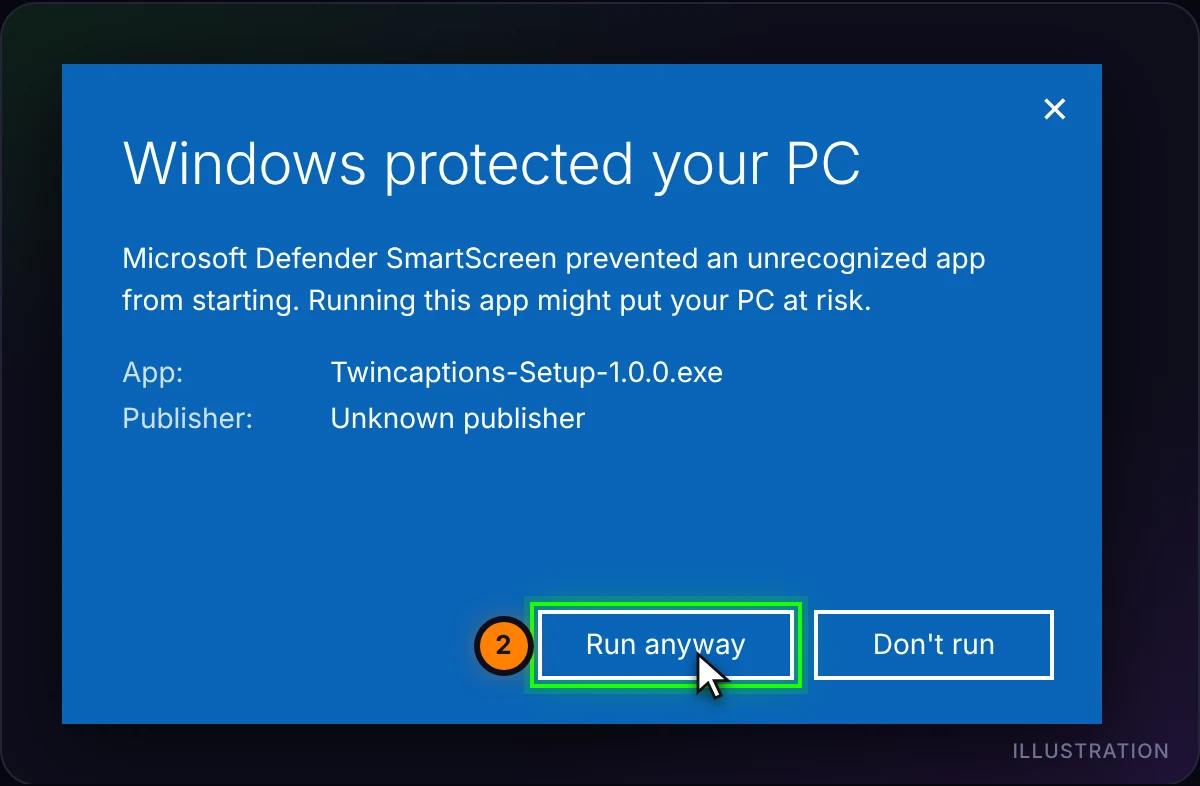
Twincaptions is new and its installer is not code-signed yet, so Microsoft Edge, Google Chrome and Windows SmartScreen may say the file “isn’t commonly downloaded” or comes from an “unknown publisher”. These warnings are about the file being new and unsigned, not about anything found in it. Download Twincaptions only from this page, then follow the steps below. The pictures are illustrations: the exact wording depends on your browser, Windows version and language.
1. Microsoft Edge: “isn’t commonly downloaded”
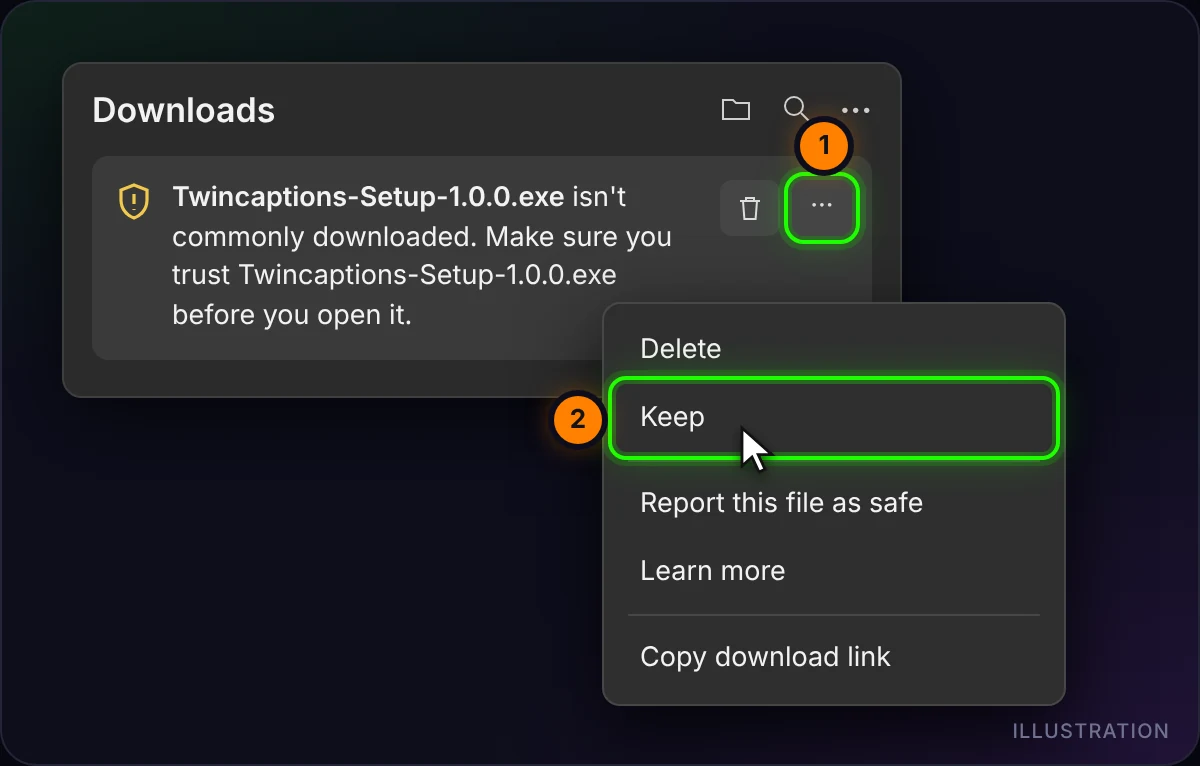
- Open the Downloads panel at the top right (or press Ctrl+J).
- Point at the Twincaptions file, click … (More actions) and choose Keep.
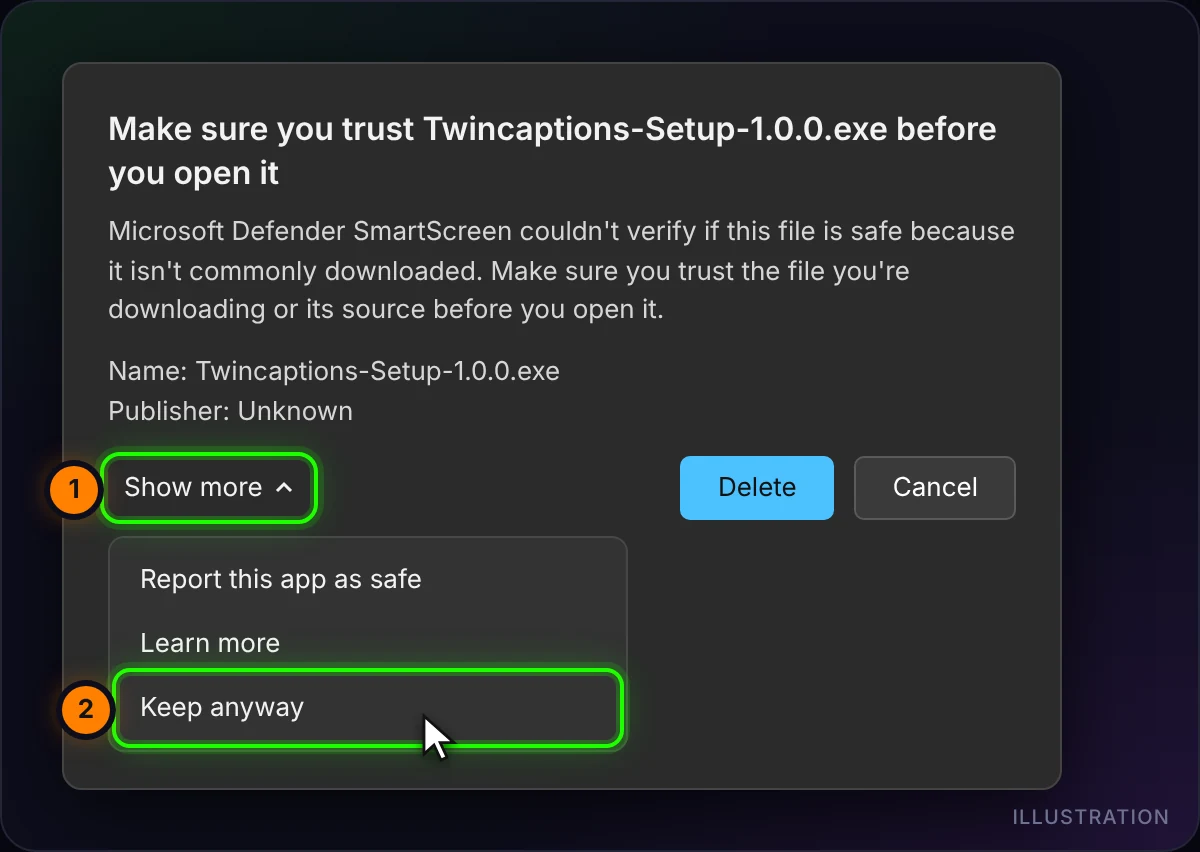
- If Edge asks again, click Show more, then Keep anyway.
2. Google Chrome, Brave or Opera
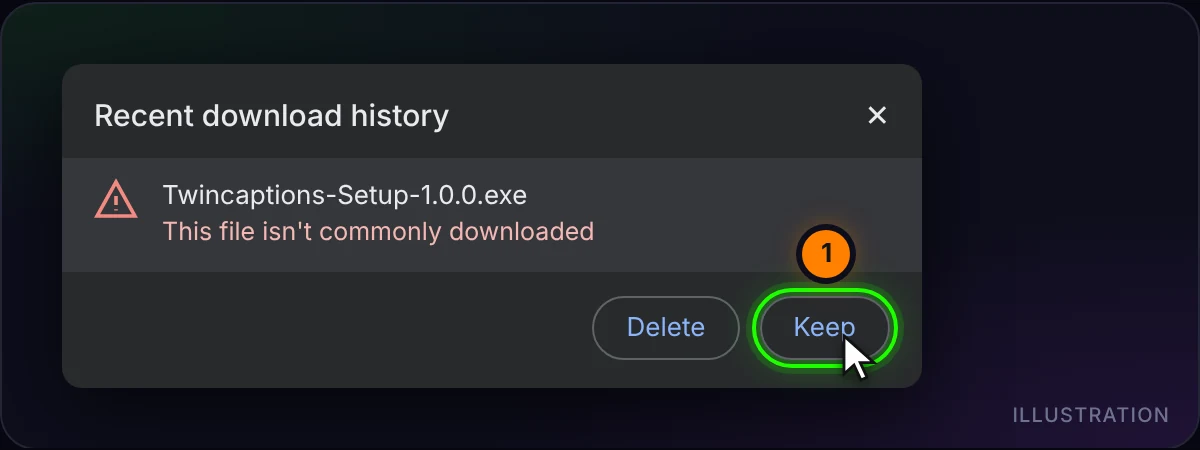
- Click the downloads icon at the top right (or press Ctrl+J).
- Next to the Twincaptions file, choose Keep. Depending on the version, it may be called Download suspicious file or sit behind the › arrow.
Firefox: open the downloads arrow, right-click the file and choose Allow download.
3. Windows: “Windows protected your PC”
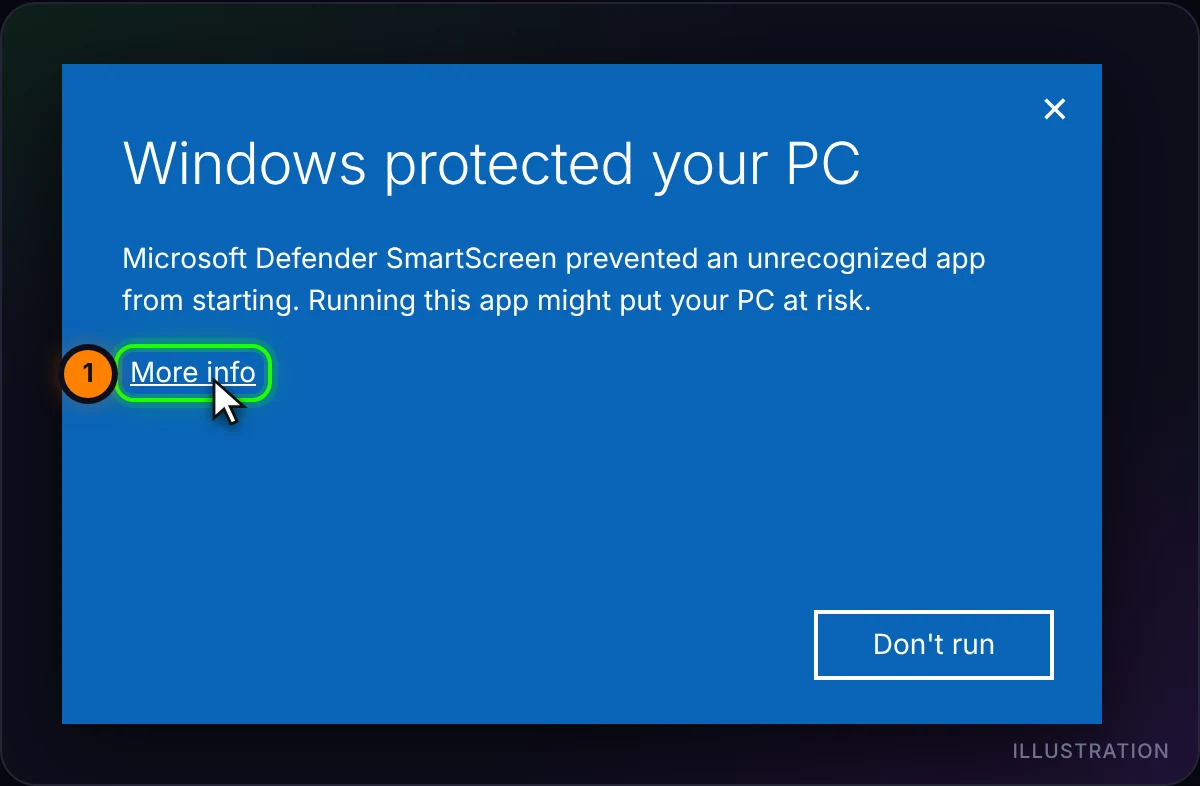
- Open the downloaded file. If a blue window says Windows protected your PC, click More info.
- Check that the app name starts with Twincaptions-Setup, then click Run anyway. “Unknown publisher” is expected until the installer is signed.
4. Optional: check that the file is genuine
Open PowerShell and run the command below. The long code it prints must match the SHA-256 shown under the Download button. If it does not match, do not run the file: download it again from this page.
Get-FileHash "$env:USERPROFILE\Downloads\Twincaptions-Setup-1.0.3.exe" -Algorithm SHA256Still blocked?
If Windows says Smart App Control blocked the app, or your antivirus quarantines the file, there is no safe one-click way around it. Please don’t turn off your protection: contact us and we’ll help.